Getting started on BookQik

Set up your business and start taking bookings. It takes about 20 minutes. Each step shows what you will see on the screen.

  • Register
  • Business details
  • Payout details
  • Location & resource
  • Services
  • Verification
  • Go live
  1. Register your business

    Go to mybookqik.com/vendor/register

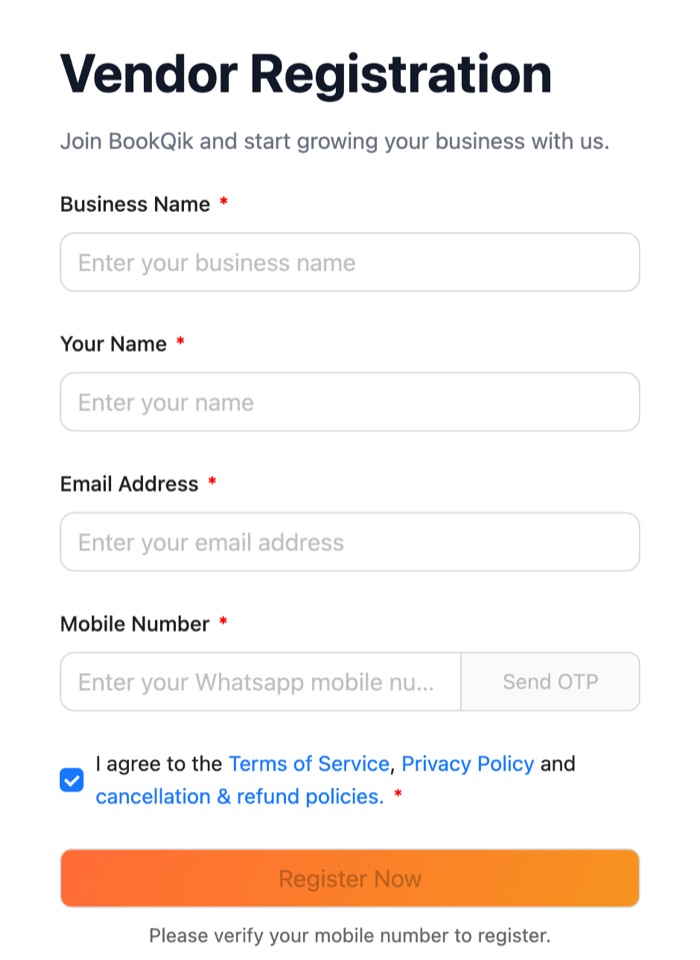
    • Enter your business name, your name and your email.
    • Enter your WhatsApp mobile number and tap Send OTP.
    • Type the 6-digit code you get on WhatsApp and tap Verify.
    • Check that the terms box is ticked, then tap Register Now.
    Vendor Registration form with business name, your name, email, WhatsApp mobile number with Send OTP, terms checkbox and Register Now button

    Didn't get the code? Wait 30 seconds and tap Send OTP again. The code works for 10 minutes.

    Logging in later: on the login page choose WhatsApp OTP, enter your registered mobile number, tap Send code on WhatsApp, type the code and tap Sign in to Dashboard. You can also use Email & password.

  2. See what is left to do

    You land on Profile after registering

    At the top of your Profile, the Start getting bookings box lists 4 steps. Customers can see and book you only after all of them are done.

    StepWho does it
    1. Fill in your business detailsYou
    2. Add your bank account or UPIYou
    3. Add at least 3 servicesYou
    4. BookQik checks your detailsOur team

    The step to do now has an orange Do this now label and a button that takes you straight there. In the menu, Profile shows how many steps you have left.

    Step 1 may already show Done, because signup saves your business name and phone. Still open it once: a photo, a short "about" and your full address help customers trust you and book you.

  3. Complete your business details

    Profile → Edit business details

    This is your shop window on BookQik. It has 3 short parts. Each part is saved when you tap Save & continue, so you can stop and come back any time.

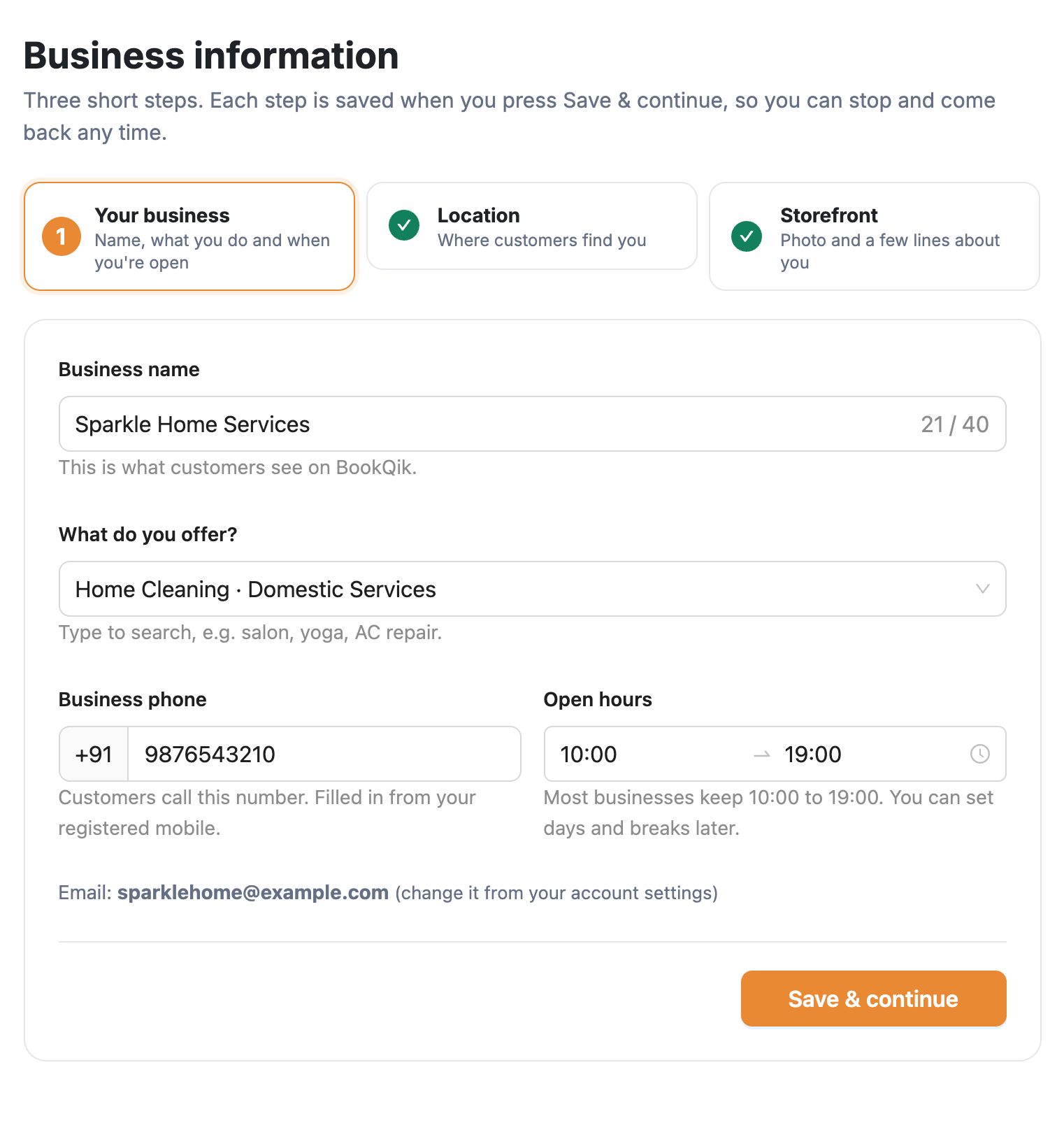
    Part 1: Your business

    • Business name: the name customers see (up to 40 characters).
    • What do you offer? Type a word like salon, yoga or AC repair and pick the closest match.
    • Business phone: the number customers call. It is filled in from your registered mobile.
    • Open hours: when you open and close. Most businesses keep 10:00 to 19:00.
    Business information, part 1 Your business: business name, What do you offer? search, business phone with +91, open hours 10:00 to 19:00, Save & continue
    Part 1: what you offer, phone and open hours.

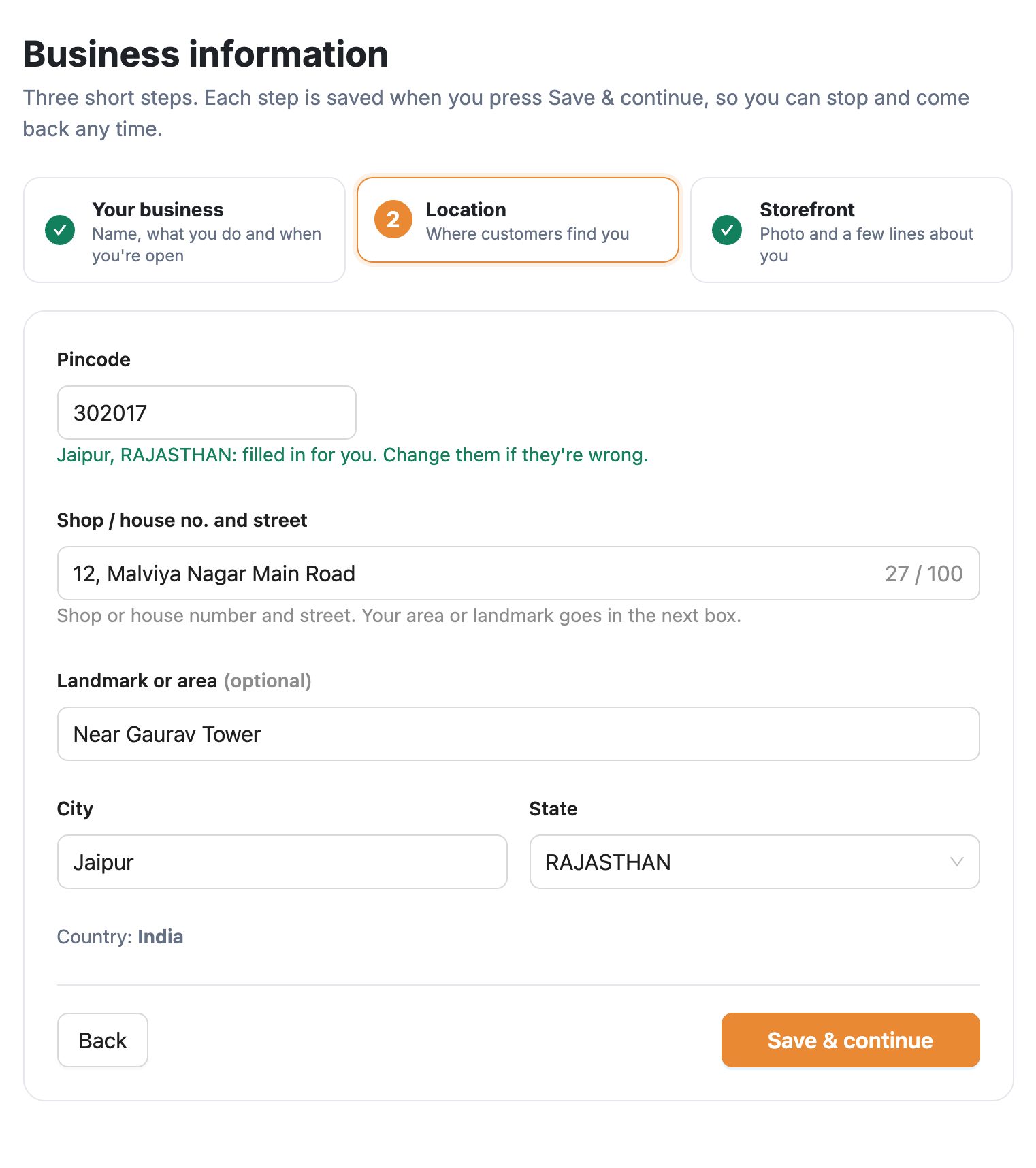
    Part 2: Location

    • Pincode: type your 6-digit pincode and your city and state are filled in for you. Change them if they are wrong.
    • Shop / house no. and street: up to 100 characters.
    • Landmark or area: for example "Near Gaurav Tower". This helps customers find you.
    Business information, part 2 Location: pincode 302017 with Jaipur, RAJASTHAN filled in, shop / house no. and street, landmark or area, city, state, Back and Save & continue
    Part 2: type the pincode and the city and state fill in.

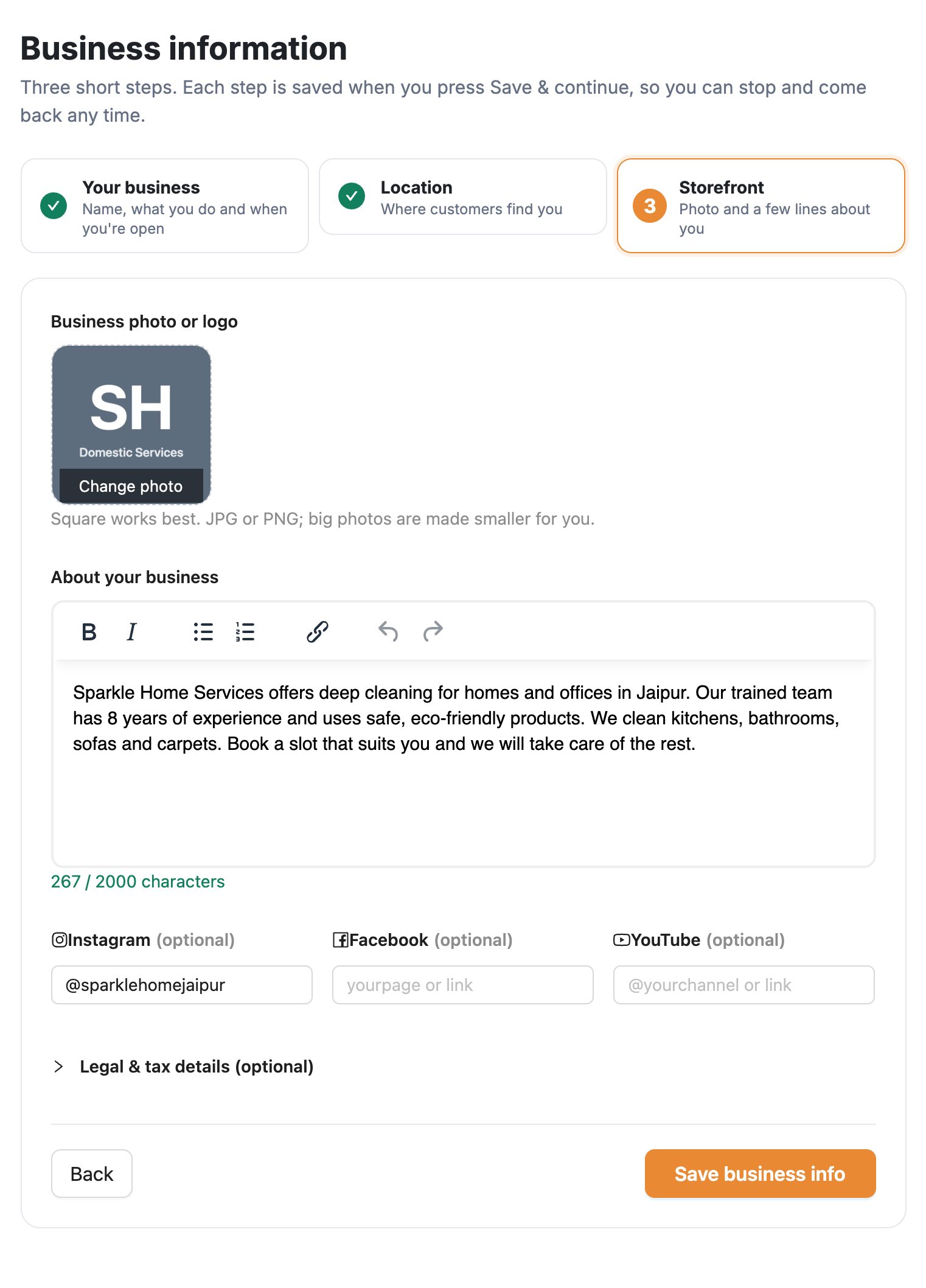
    Part 3: Storefront

    • Business photo or logo: a square photo works best. Big photos are made smaller for you. No logo? Tap Make one from my business name.
    • About your business: at least 100 characters. Say what you do, your experience and what makes you different. Stuck? Tap Start from a sample and change it to your own words.
    • Instagram, Facebook, YouTube: optional. Paste the link or just your @name.
    • Legal & tax details: optional. Add them only if you have a registered business or GST.
    Business information, part 3 Storefront: logo made from the business name, About your business text with character count, Instagram, Facebook and YouTube, Legal & tax details (optional), Save business info
    Part 3: photo or logo, a few lines about you, and your social pages.

    Tap Save business info at the end. You go back to your Profile.

    If something is wrong, the message shows under that box. Common ones: the state must match the pincode, and a GST number must contain your PAN (characters 3 to 12). Lost your internet? What you typed is kept on your phone or computer, so nothing is lost.

  4. Add your payout details

    Profile → scroll down to Payout Details

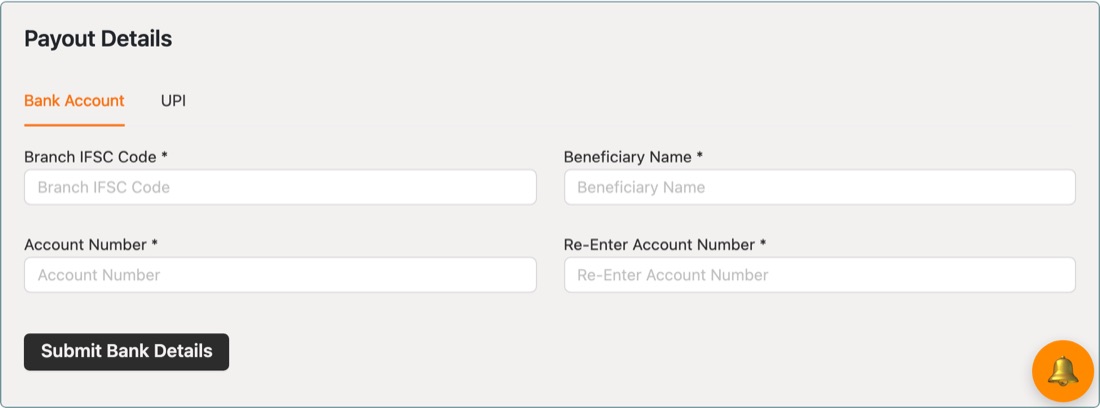
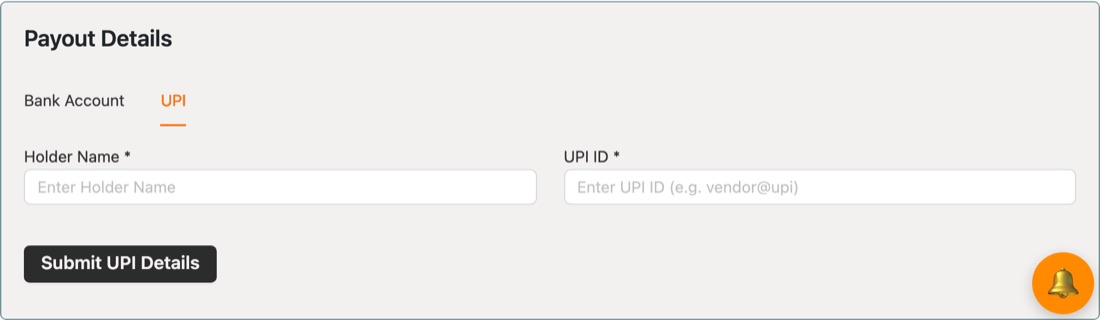
    This is where BookQik sends the money from your bookings. Add either a bank account or a UPI ID.

    Bank Account tab: Branch IFSC Code, Beneficiary Name, Account Number, Re-Enter Account Number, Submit Bank Details
    Bank account: IFSC, name on the account, account number twice.
    UPI tab: Holder Name, UPI ID, Submit UPI Details
    Or UPI: account holder name and UPI ID.

    Enter the name exactly as your bank shows it. Payouts can fail if the name does not match.

  5. Check your location and add a resource

    Locations and Resources in the menu

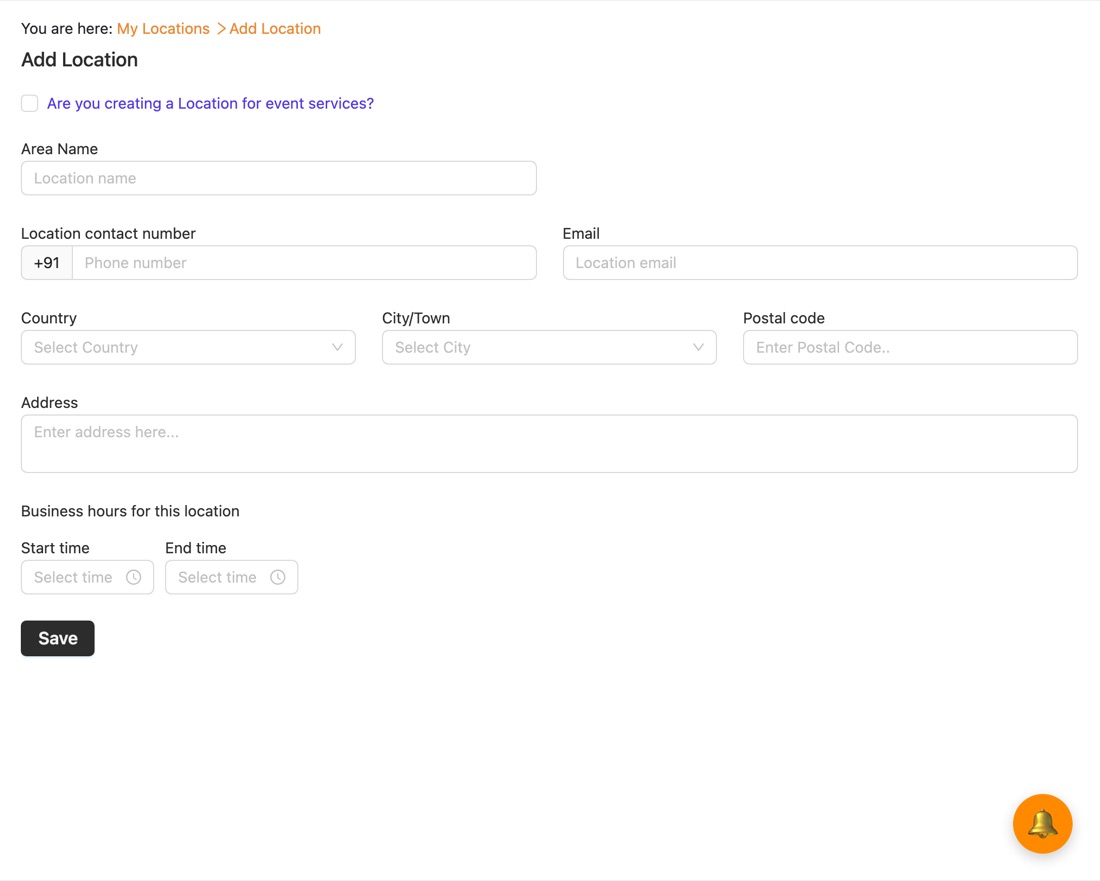
    A location is already made for you at signup, with your business name and city. Open Locations, edit it, and add your full address and business hours so customers know where to come. Have more than one branch? Tap Add Location for each one.

    Running an event? Add a location and tick "Are you creating a Location for event services?" at the top.

    Location form: area name, contact number, email, country, city, postal code, address, business hours start and end time, Save

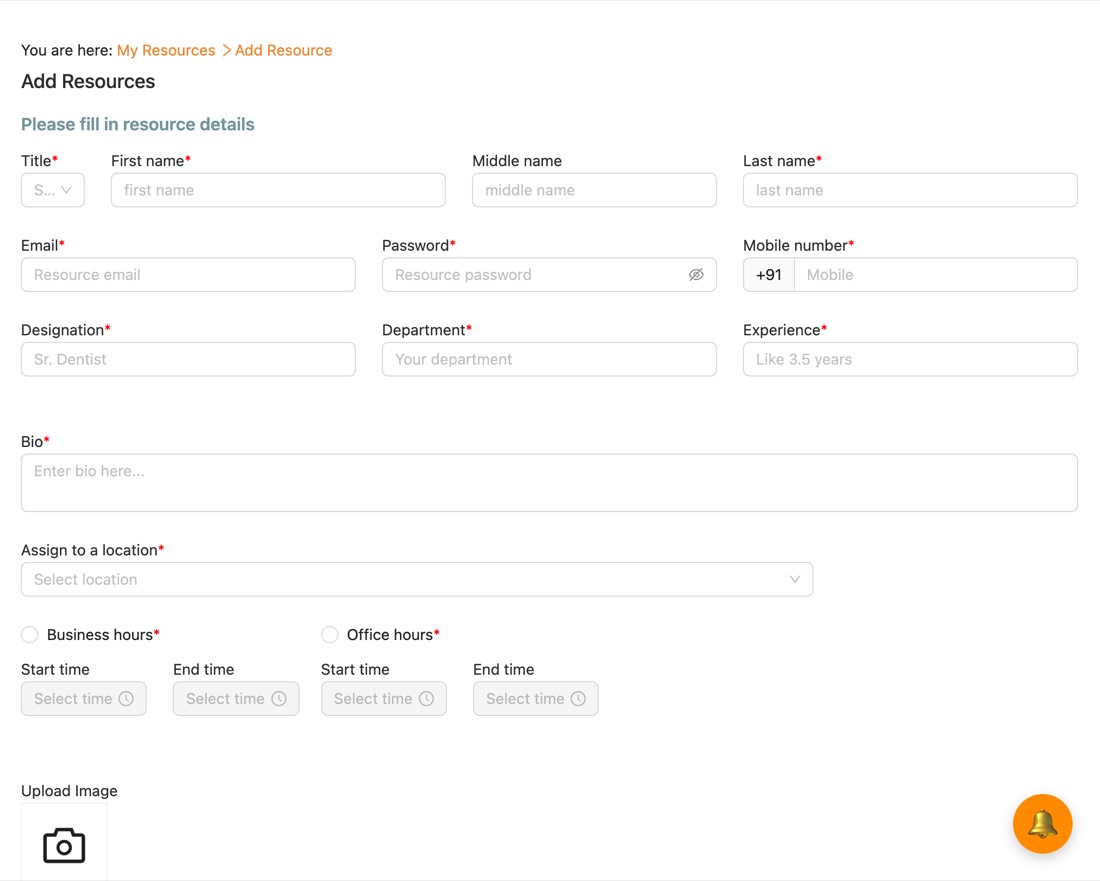
    Next, go to Resources → Add Resource. A resource is the person who delivers the service: you, or a member of your team. Add at least one. If you work alone, add yourself. Fill in the name, contact details and a short bio, choose your location, and set the working hours.

    Add Resources form: title, first and last name, email, password, mobile, designation, department, experience, bio, assign to a location, business or office hours, upload image

    Do this before adding services. When you add a service, a location only shows up once it has at least one resource.

  6. Add at least 3 services

    Services → Add Package/Service

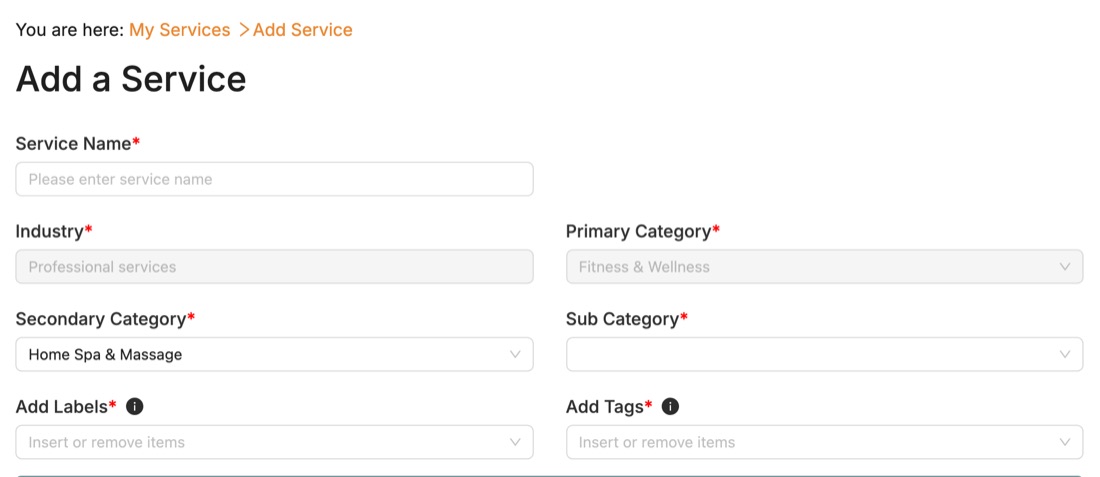
    Give the service a clear name, pick its sub-category, and add labels and tags so customers can find it.

    Add a Service form: service name, industry, primary category, secondary category, sub category, labels and tags

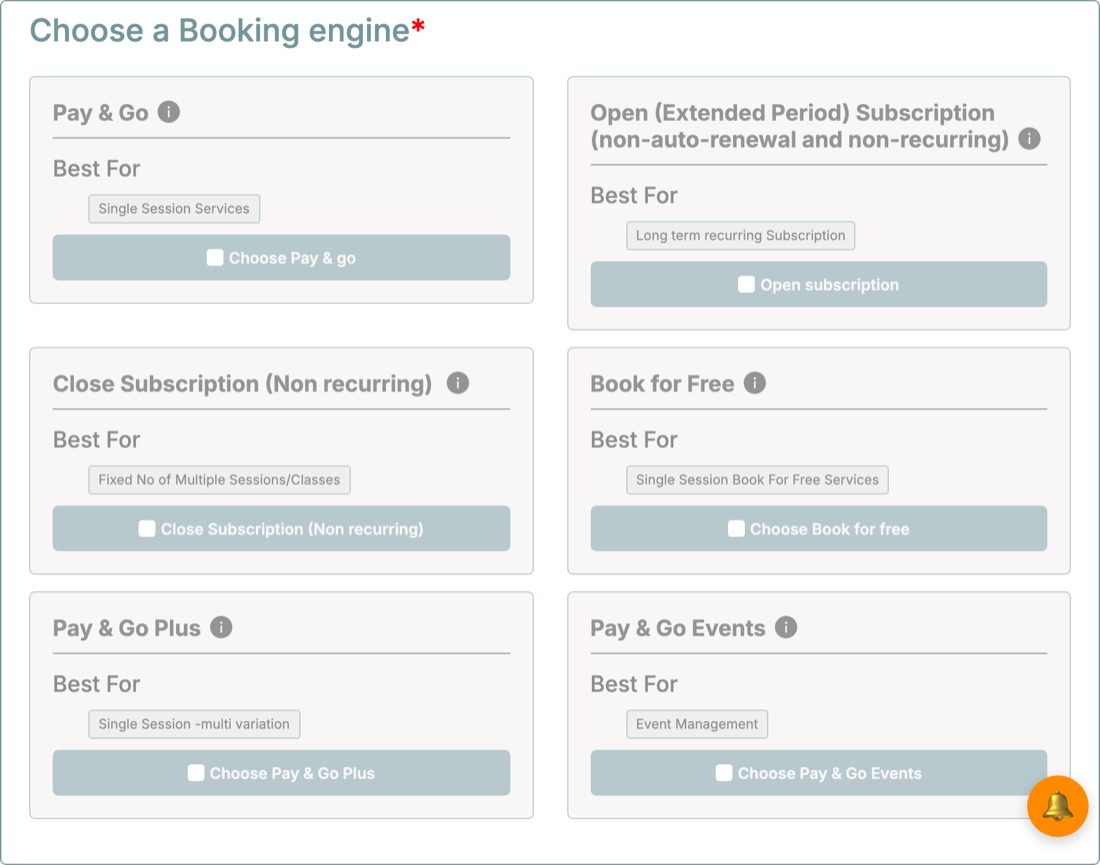
    Then choose how customers book it. Not sure which one? See Choosing a booking type below.

    Booking typeBest for
    Pay & GoSingle sessions, like a haircut or one repair visit
    Pay & Go PlusA single session with options, like small, medium or large
    Close SubscriptionA fixed number of classes or sessions
    Open SubscriptionA long-term plan over a set period
    Pay & Go EventsEvents with dates and tickets
    Book for FreeFree single sessions, like a demo or first consultation
    Choose a Booking engine: Pay and Go, Open Subscription, Close Subscription, Book for Free, Pay and Go Plus, Pay and Go Events

    Next, set the price and timings. Under Assign location and resource, keep Is a resource required for this service? on Yes, tick your location, and select the resources who deliver it. Add a cancellation policy and photos, tap Preview to check, then Save & Publish.

    You need 3 live services before customers can book you. Your checklist updates every evening, so step 3 turns Done the day after your third service goes live.

  7. BookQik checks your details

    Step 4 in your Start getting bookings box

    Our team checks your business and payout details. Nothing to do here, but a complete profile (photo, about, full address) makes the check quicker. Once it is approved and your 3 services are live, customers can find and book you on BookQik.

  8. You're live

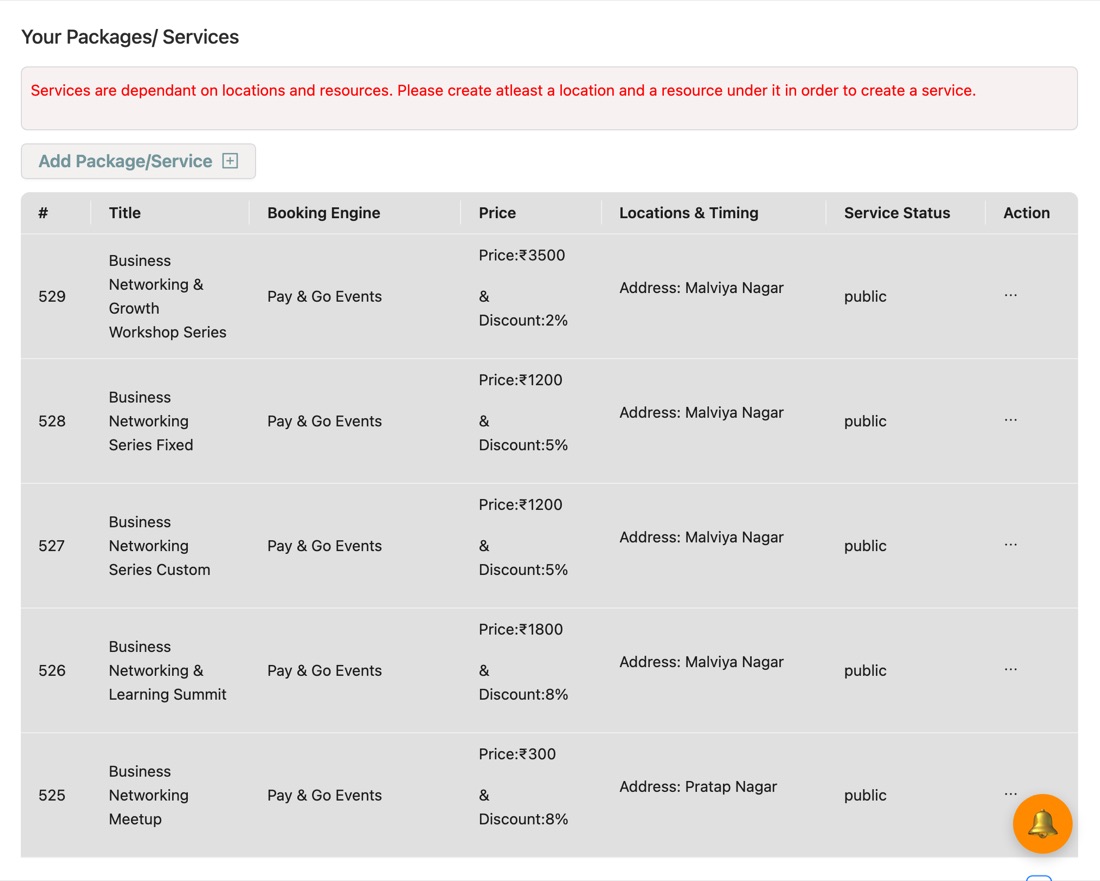
    Services shows everything you've published

    Your Packages / Services list showing each service's title, booking engine, price and discount, location and status public

    When all 4 steps are done, the checklist box goes away. Your profile then shows a performance level next to your business name. It updates every evening:

    No level yetfewer than 3 live services: your checklist shows the next step instead
    Ready for Bookings3 or more live services
    Active1–5 completed bookings
    Growing6–24 completed bookings
    Top Performing25–60 completed bookings
    Super Performing61–100 completed bookings
    High Volume101 or more

    After each booking, enter the customer's code to mark it complete. Only completed bookings count toward your level.

Choosing a booking type

The booking type decides how a customer books and pays for your service. Pick the one that matches how your customers actually use it. You can create different services with different types.

Most vendors start with Pay & Go. About 3 in every 4 live services on BookQik use it, and Pay & Go Plus is next.

Which one fits?

  1. Is the service free?→ Book for Free
  2. Is it an event for a group on fixed dates, like a workshop or show?→ Pay & Go Events
  3. Does the customer come for one visit?Same price for everyone → Pay & Go
    Choice of options or sizes at different prices → Pay & Go Plus
  4. Does the customer come many times?A set number of sessions → Close Subscription
    Any number of visits within a time period → Open Subscription

Pay & Go

Most used

One visit, one fixed price. The customer picks a date and time slot and pays when booking.

You set up
Price, duration, the days and time slots you're open, and how many customers per slot.
Examples
Haircut, mobile battery replacement, laptop repair, online consultation.
Tip
If the same service has different prices (small, medium, large), use Pay & Go Plus instead of creating separate services.

Pay & Go Plus

Second most used

Like Pay & Go, but the customer chooses an option first. Each option has its own name, details and price.

You set up
Everything from Pay & Go, plus each option (variant): name, what's included, and the amount.
Examples
Home electrical work by job type, CCTV repair or yearly maintenance, dry-cleaning by item, teeth whitening options.
Tip
Name options the way customers ask for them, like "1 BHK" or "Leather jacket", so they can pick quickly.

Close Subscription

One booking covers a set number of sessions, for example 8 classes or 5 sittings. The customer pays once for all of them.

You set up
Number of sessions and the gap between them: daily, weekly or monthly.
Examples
A course of classes, physiotherapy sittings, dental treatment over several visits.
Tip
Good when the result needs the full set of sessions. Customers know exactly what they're paying for.

Open Subscription

The customer pays once and can visit as often as they like within a time period. It doesn't renew automatically.

You set up
The subscription period in days, months or years. The service is available to the customer for that long.
Examples
Gym or fitness membership, a music course or diploma.
Tip
Use it when customers come regularly but not on a fixed schedule.

Pay & Go Events

A ticketed event on fixed dates for a group. Customers book a seat for a date and session.

You set up
Event type, dates, session times, venue or hall, and the maximum number of attendees.
  • Single date, single session
  • Single date, multiple sessions
  • Multiple dates, single session
  • Multiple dates, multiple sessions
Examples
A beauty training workshop, an open mic night, a business networking meetup.
Tip
When adding the location, tick "Are you creating a Location for event services?".

Book for Free

Customers reserve a slot without paying. Good for bringing in new customers.

You set up
The same as Pay & Go, without a price.
Examples
A first consultation, a diagnostic check-up, a tax-filing consultation.
Tip
Free bookings don't count toward your performance level. Use them to start a conversation, then offer a paid service.

Ready? Register your business. Need help with any step? Call 81786 58505 or 98280 86155, email support@mybookqik.com, or ask your BookQik team member.